The ELLIPAL firmware update requires a desktop computer. Please visit this page on your Windows or macOS machine to proceed.
Copy the URL below and paste it into your desktop browser to begin the firmware update.
The ELLIPAL Desktop App requires Windows or macOS to communicate with your hardware wallet.
Copy this URL and open it on your desktop browser
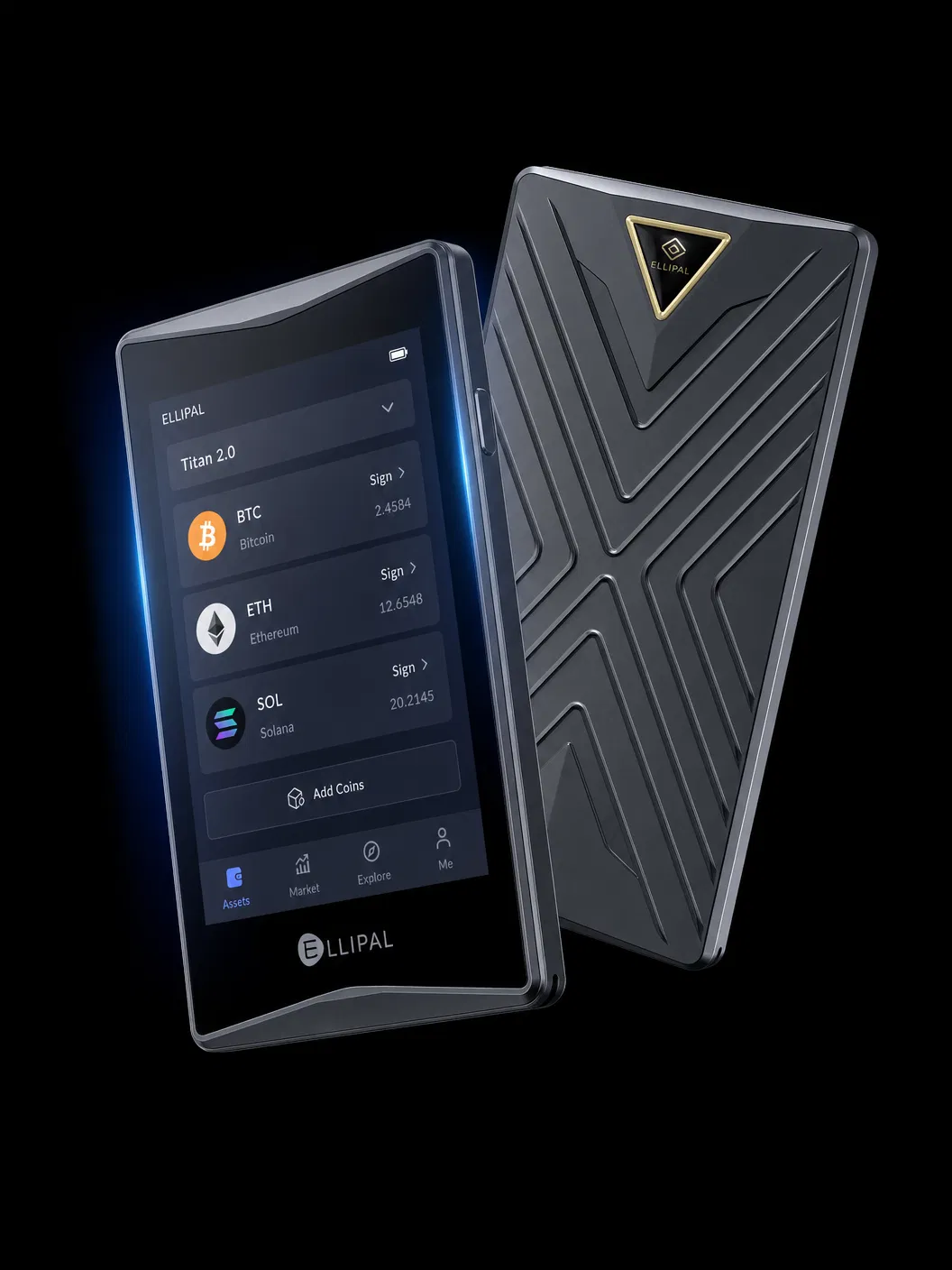
Whether you're a current or new ELLIPAL user — to update your firmware to the newly released operating system, install the ELLIPAL Desktop App.
Windows Defender SmartScreen may appear when you run the installer. This is normal for newly released software. Follow these two steps to proceed safely.
When Windows shows "Windows protected your PC", do not close it. Click the "More info" link to reveal the Run anyway option.
After clicking "More info", the "Run anyway" button will appear at the bottom of the dialog. Click it to begin the ELLIPAL Desktop App installation.
Update your ELLIPAL hardware wallet to the latest operating system. Enhanced security, new features, and improved performance — installed in minutes via the Desktop App.
This update brings major security improvements, new blockchain support, and critical bug fixes.
Native support for decentralized prediction market protocols — trade outcomes directly from your cold wallet.
NewFull Bitcoin Taproot (P2TR) address support for enhanced privacy and lower transaction fees.
NewStrengthened firmware verification and improved secure element communication protocols.
ImprovedResolved display lag on large transaction histories and improved QR code scanning speed.
FixedV4.12.0 is available for all current ELLIPAL hardware wallet models.
Latest generation with enhanced security chip and larger display.
Original Titan model — fully compatible with V4.12.0.
Compact model — update available via Desktop App.
Follow these four steps to update your ELLIPAL firmware safely and securely.
Download and install the ELLIPAL Desktop App on your Windows or macOS computer. The app will detect your device and guide you through the update automatically.
Windows may show a SmartScreen warning. Click "More info" then "Run anyway" to proceed — the installer is verified and safe.
Connect your ELLIPAL Titan 2.0, Titan, or Titan Mini to your computer using the provided USB cable. Ensure the device is powered on and unlocked before connecting.
Make sure your device has at least 30% battery before starting the update to prevent interruptions.
Open the ELLIPAL Desktop App. It will automatically detect your connected device and display the available firmware update. Click "Update Firmware" to begin.
Do not disconnect your device or close the app during the update. The process takes approximately 2–5 minutes.
Once the update is complete, your device will restart automatically. Verify the firmware version in Settings → Device Info on your ELLIPAL device to confirm V4.12.0 is installed.
Your wallet data and private keys are never affected by a firmware update. All assets remain secure.
Ensure these conditions are met before starting the firmware update.
A low battery during update can corrupt firmware. Charge your device first.
The Desktop App needs internet to verify and download the firmware package.
Download and install the latest ELLIPAL Desktop App before connecting your device.
Removing the USB cable mid-update can cause firmware corruption requiring recovery.
Although updates don't affect wallet data, always ensure your seed phrase is safely stored.
Your ELLIPAL device must be unlocked and on the home screen before connecting via USB.
Every ELLIPAL firmware update is cryptographically signed and verified. Your private keys never leave your device.
ELLIPAL has maintained a perfect security record since 2018.
Firmware updates are verified on-device before installation.
Every firmware package is signed with ELLIPAL's private key.
Our support team is available 24/7 to assist with firmware updates and device setup.